



Sometimes the phone feels warmer than usual. And sometimes the battery percentage keeps falling even when you barely use it. If you are dealing with iPhone battery draining fast after iOS update, you are definitely not the only one noticing it. The phone may still be handling background tasks like app optimization, Spotlight indexing, photo syncing, or system cleanup in the background. That part is fairly common. Still, there are cases where the drain keeps going for days instead of settling down naturally.
This guide breaks down what is actually happening, what is temporary, what is not, and the fixes that genuinely help without wrecking your settings or wasting hours on random “battery hacks” from TikTok.
Why Does iPhone Battery Drain Faster After an iOS Update?
A new iOS update lands, and within a day people start saying the same thing. Their battery suddenly feels worse. The phone gets warmer. The charge drops faster than usual, even during light use. Naturally, many assume Apple broke something. A little extra drain for the first couple of days is fairly common. A week of terrible battery life is a different story.
Background Indexing and System Optimization
One of the biggest causes is Spotlight indexing. After a major iOS release, the system needs to reorganize and re-index large parts of the phone so searches, Siri suggestions, and app data work properly again.
App Compatibility and Hidden Background Activity
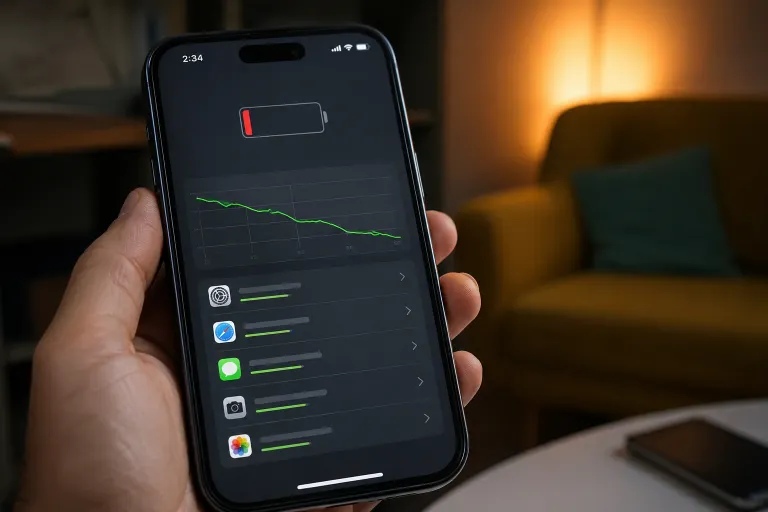
Apps can make the situation worse. Especially older apps or ones that were not fully optimized for the latest iOS version yet. A buggy app may repeatedly refresh in the background, fail syncing attempts, or keep waking the phone without you realising it. This is one reason some people suddenly notice battery percentage dropping fast overnight while the phone sits untouched beside the bed. If you want to check what is actually draining power, go to:
Settings → Battery
When Battery Drain Is Normal vs a Real Issue
A temporary hit to battery life after updating iOS is not unusual. Most phones settle down once indexing, syncing, and background optimization finish running.
What is not normal:
- battery drain lasting well beyond a few days
- the phone getting hot constantly
- rapid battery loss while idle
- charging issues appearing at the same time
- the battery dying halfway through the day after basic use
If you also notice iPhone overheating after update, there may be more going on than simple post-update indexing.
How to Check What Is Draining Your iPhone Battery
Before changing random settings or downloading “battery saver” apps, check what is actually using the power first. A lot of people skip this step completely and end up disabling features that were never causing the problem in the first place.
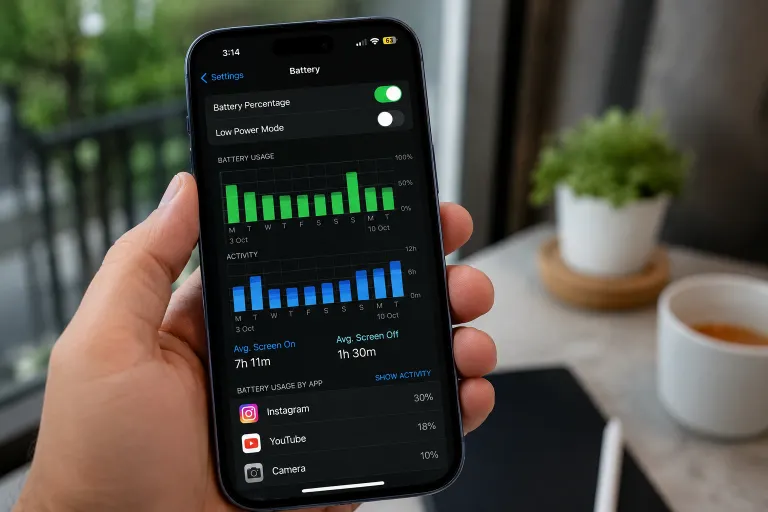
Using Battery Usage in Settings
Go to: Settings → Battery
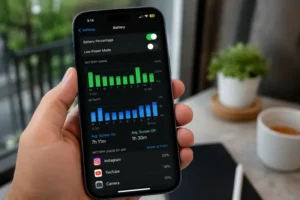
Give it a few seconds to load properly. You will see battery activity for the last 24 hours and the last 10 days, along with a breakdown of which apps used the most power. Maybe an app kept running in the background. Below the graph, tap on individual apps to see more details.
You will usually see:
- Screen On
- Background Activity
Understanding Screen On vs Background Activity
Screen On simply means the app used power while you were actively using it. Background Activity is different. That means the app was still running, refreshing, syncing, tracking location, or doing something behind the scenes while the phone was supposedly idle. This is often where people discover what is really causing iPhone battery draining fast after iOS update issues. I have even seen shopping apps quietly draining battery overnight because push notifications kept waking the phone repeatedly.
Apps and Features That Consume the Most Power
Streaming apps, navigation apps, and social media platforms are usually the obvious battery users. That part is expected.The more frustrating drain often comes from hidden settings and background services people never check.
A few common ones:
- real-time widgets
- aggressive push notifications
- constant location tracking
- background app refresh
- email fetch running too frequently
- 5G staying active in weak signal areas
System Services can also quietly eat battery life after an update. Especially things tied to location tracking and analytics.
To check them:
Settings → Privacy & Security → Location Services → System Services
You probably do not need every toggle switched on there. If you are noticing battery percentage dropping fast, this section is worth checking before doing anything drastic like resetting the phone.
The Most Common Reasons Your iPhone Battery Is Draining Fast
Once the initial post-update indexing settles down, ongoing battery drain usually comes from a handful of settings and features people rarely think about. Not dramatic hidden bugs. Just small things quietly running all day and eating battery in the background. Some are worth keeping on. Others honestly are not.
5G Connectivity Issues
When your iPhone constantly jumps between 5G and LTE towers, the modem works harder trying to maintain connection stability. Weak signal areas make the problem worse. The phone keeps searching for a stronger signal even when you are barely using it. If your battery suddenly started draining faster after updating iOS, switching temporarily to LTE can help test whether 5G is part of the problem.
Go to:
Settings → Mobile Data → Voice & Data
Then switch from 5G Auto to LTE for a day or two and compare the difference.
Background App Refresh
After an iOS update, some apps also become unusually aggressive with background activity until developers push proper optimization updates. You do not need this enabled for everything.
Go to:
Settings → General → Background App Refresh
Turn it off for apps that do not genuinely need real-time updates.
Location Services and Push Notifications
Location tracking quietly drains more battery than most people expect. Some apps continue checking your location even after you stop using them. If you are noticing battery percentage dropping fast, this section is worth checking carefully.
Inside:
Settings → Privacy & Security → Location Services
A lot of apps honestly do not need constant location access.
High Screen Brightness and Always-On Display
The display is still one of the biggest battery users on any iPhone. Brightness alone can make a noticeable difference, especially outdoors where the screen automatically pushes itself harder. And on newer models like the iPhone 15 Pro, Always-On Display adds a steady background drain throughout the day.
10 Practical Fixes to Improve iPhone Battery Life After an Update
A lot of battery drain guides throw 25 different “fixes” at you all at once. Most people end up changing random settings without even knowing what helped. Better approach? Start with the simple stuff first. Some fixes take under a minute. Others are more annoying but worth trying if the drain refuses to settle down.
1. Wait 24 to 48 Hours After Updating
If you installed the update recently, your iPhone may still be finishing background indexing, syncing photos, rebuilding search data, and optimizing apps. Give it a little time first. Use the phone normally for a day or two and compare battery life again afterwards.
2. Enable Low Power Mode
Low Power Mode cuts down a surprising amount of background activity. Low Power Mode reduces background activity and power usage
You can enable it from:
Settings → Battery
or directly through Control Center.
3. Reduce Background Activity
Go to:
Settings → General → Background App Refresh
You do not have to disable it completely, but trimming unnecessary apps helps more than people expect. Especially if you are dealing with battery optimization iPhone settings issues after updating.
4. Optimize Charging Settings
Open:
Settings → Battery → Battery Health & Charging
Make sure Optimized Battery Charging is enabled. It helps reduce long-term battery wear
5. Switch from 5G to LTE
If your area has unstable 5G coverage, the phone may constantly search for stronger signals throughout the day. That background signal hunting drains battery faster than most people realise.
To test it:
Settings → Mobile Data → Voice & Data
Switch temporarily from 5G Auto to LTE and see whether battery life improves over the next day or two.
6. Update Apps Regularly
After major iOS releases, some apps behave terribly until developers push compatibility updates. Outdated apps can cause excessive background drain after updates. Open the App Store and install pending updates before assuming the iPhone itself is the problem. This step alone fixes a lot of iOS update battery drain fix complaints.
7. Restart or Reset Settings
A simple restart still fixes more problems than people expect. Power the iPhone off completely, wait around 30 seconds, then turn it back on. Temporary glitches sometimes disappear immediately afterward.
Go to:
Settings → General → Transfer or Reset iPhone → Reset → Reset All Settings
This does not erase photos, apps, or personal data. It mainly resets system settings, Wi-Fi networks, permissions, and preferences.
8. Install Bug-Fix iOS Updates
Apple usually releases follow-up patches fairly quickly after major iOS launches. These updates often fix battery and performance issues. A lot of users ignore these patches for weeks and then wonder why the battery still feels terrible.
Check:
Settings → General → Software Update
and make sure the phone is running the latest stable version available.
9. Monitor Battery Health
Go to:
Settings → Battery → Battery Health & Charging
Look at Maximum Capacity. If it drops below 80%, the battery itself may be struggling regardless of software fixes. At that stage, faster drain, weaker performance, and random shutdowns become more common.
10. Factory Reset as a Last Resort
If nothing improves after several days, a factory reset may be worth considering. They are just one of the cleanest ways to remove corrupted settings, broken app behaviour, or software conflicts hiding in the background. Back everything up first.
Then go to:
Settings → General → Transfer or Reset iPhone → Erase All Content and Settings.
Why Is Your iPhone Overheating After the iOS Update?
When the iPhone is busy running background tasks after an update, the processor stays active longer than normal. More activity means more heat. Then the heat affects battery efficiency, which causes even more drain. The whole thing sort of feeds itself for a while. Some warmth during the first day or two is pretty normal. A phone staying hot for hours is a different situation.
Connection Between Heat and Battery Drain
A lot of post-update activity happens quietly in the background. Background processes after updates can temporarily increase heat. On models like the iPhone 14 Pro and iPhone 15 Pro, you may also notice the screen dimming automatically or animations feeling slightly slower for a bit. That is thermal throttling. iOS lowers performance temporarily to stop the phone from getting too hot internally.
When Overheating Becomes Serious
There is a difference between “slightly warm” and genuinely overheating.
A few warning signs:
- the phone feels hot even during light use
- charging becomes unusually slow
- the battery keeps dropping while plugged in
- the screen dims repeatedly
- the phone stays hot for a long time after charging
And if you see the:
“iPhone needs to cool down before you can use it”
Warning, stop pushing the phone immediately. Take the case off. Move the device out of sunlight. Let it sit for a while without charging. One mistake people still make? Putting the iPhone in a fridge or freezer.
How to Cool Down Your iPhone Safely
Usually, small changes help more than aggressive fixes.
Try:
- enabling Low Power Mode
- switching from 5G to LTE temporarily
- pausing gaming or video editing apps
- stopping charging for a while
- lowering screen brightness
- placing the phone on a cool hard surface
If the phone still feels hot while charging and the battery keeps falling anyway, there is a decent chance a background process is stuck running harder than it should.
Does iOS 18 Damage iPhone Battery Health?
iOS 18 cannot physically ruin a healthy lithium-ion battery overnight. What it can do is expose problems that were already there. An older battery that felt “fine” before the update may suddenly struggle once the phone starts handling heavier background activity. That is usually where the confusion starts.
Understanding Battery Health Percentage
A new iPhone starts at 100%. Over time, that number slowly drops. Heat speeds the process up. So does constant charging, gaming while plugged in, and keeping the battery near 0% too often. Sometimes after updating iOS, people suddenly notice a 1% or 2% drop and assume the update caused damage. In reality, iOS may simply recalculate the battery reading more accurately after the update finishes settling in.
Normal Degradation vs Actual Battery Damage
A slow decline in battery health over months is expected.
What is not normal:
- the phone shutting down randomly at 20% or 30%
- severe overnight battery drain
- constant overheating
- battery swelling
- Maximum Capacity dropping unusually fast
When to Replace Your Battery
Once Maximum Capacity falls below 80%, daily battery life usually starts feeling noticeably worse.
You may start noticing:
- shorter screen-on time
- random shutdowns
- slower performance
- needing multiple charges during the day
At that stage, tweaking settings only helps so much. A battery replacement is usually the more realistic fix. Apple is the safer option if genuine parts and warranty support matter most to you.
Should You Downgrade iOS to Fix Battery Drain?
Probably not. Many people rush to downgrade after an update because the battery suddenly feels worse. The problem is that Apple usually stops signing older iOS versions pretty quickly, so downgrading often is not even possible after a short time.
Risks of Downgrading
Downgrading can:
- cause backup compatibility issues
- remove important security patches
- create app stability problems
- break newer app features
For temporary battery drain, it is usually not worth the hassle.
Why Waiting Is Usually Smarter
Most post-update battery issues improve once:
- background indexing finishes
- apps get optimized
- Apple releases a small patch update
In a lot of cases, battery life settles down within a few days anyway. Waiting a little usually works out better than trying to force the phone backwards.
When to Seek Professional iPhone Battery Repair
If you have already tried the fixes and the battery still drains aggressively every day, the issue may not be software anymore.
Signs the Battery Itself Is Failing
A few warning signs:
- the phone shuts down randomly
- battery percentage jumps suddenly
- charging feels unusually slow
- the phone gets hot while charging
- the battery drains heavily even during light use
And if the screen starts lifting slightly from one side, stop ignoring it. That can point to battery swelling.
Battery Replacement vs Software Troubleshooting
Software issues usually come and go. Hardware problems usually get worse over time. If Battery Health is below 80%, endless settings tweaks probably will not help much anymore. At that point, replacing the battery is often the more realistic fix.
When Apple Support or a Repair Shop Can Help
Apple is usually the better option if the phone is still under warranty or covered by AppleCare+. For older devices, a reputable local repair shop can sometimes be more affordable and faster. Just make sure they use quality replacement parts and offer at least some warranty on the repair.