

You hit play on a video or answer a call, and there’s no sound. Or worse, a weak crackle that makes you question if the speaker is dying. I’ve seen this happen countless times, and here’s the reality: a phone speaker not working usually isn’t as serious as it feels. In most cases, it’s something simple, a setting, a blockage, or a small software glitch. The mistake people make is jumping straight to repair without checking the obvious first. In this guide, you’ll quickly figure out what’s actually causing the issue and how to fix it step by step, whether you’re using Android or iPhone.
Still dealing with no sound on phone or inconsistent audio? Don’t guess, run through the quick checks below before you spend money on a repair. In most cases, what looks like a hardware issue is just a fixable setting or routing problem.
Why Phone Speakers Fail: And What the Symptoms Actually Mean (Optimized)
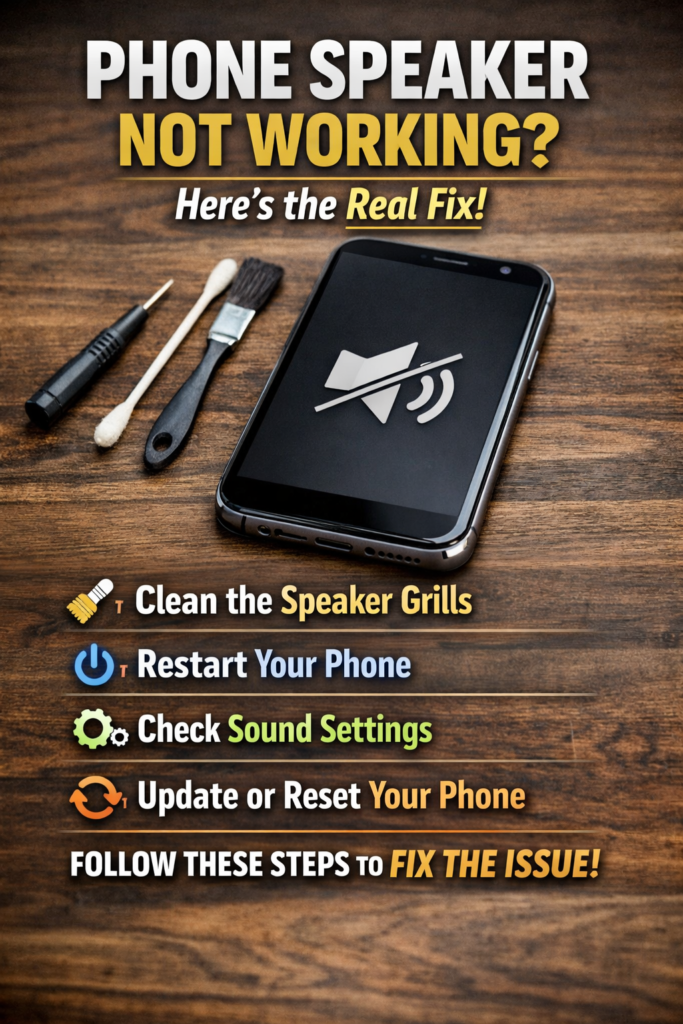
Most people guess when their phone sound is not working, but the issue usually leaves clear clues. If you pay attention to how the sound fails, you can pinpoint the cause in minutes instead of trying random fixes.
Here’s a simple breakdown you can rely on:
What You Notice | Likely Cause | Fix Difficulty |
No sound at all | Silent mode, headphone mode stuck, or hardware issue | Easy → Hard |
Sound from only one side | Earpiece vs loudspeaker confusion or app routing | Easy |
Crackling or distorted audio | Dust, water damage, or speaker wear | Easy → Medium |
Very low volume | Blocked speaker grill or sound settings issue | Easy |
Works with headphones only | Headphone mode stuck (common after moisture) | Easy |
Sound works in some apps only | App settings or audio routing problem | Easy |
This alone can save you a lot of time.
For example, if your mobile speaker is not working but audio works perfectly with headphones, it’s almost never a hardware failure. In most cases, your phone is stuck in headphone mode, a quick fix, not a repair job. The key is simple: don’t treat every sound issue the same. The symptom tells you where to start.
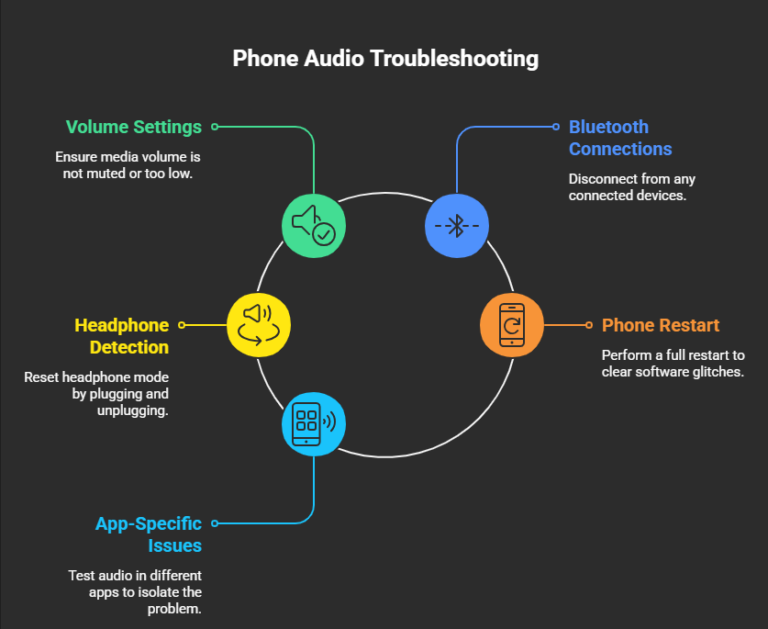
The 60-Second Checklist: Do This First
Before you assume your phone audio is not working, check these basics. I’ve seen people pay for repairs when the issue was just a setting. Most technicians follow a similar checklist before opening a device because simple fixes solve a large percentage of cases.
Run through this quickly:
- Check your volume settings
Press volume up and confirm media sound is actually increasing. On iPhone, check the silent switch. On Android, make sure media volume isn’t muted while ringtone is active. - Turn off Bluetooth connections
Your phone might still be connected to a car or wireless device. If audio is being redirected, your mobile speaker not working isn’t the real issue. - Reset headphone detection
Plug in and remove headphones (or a charging cable if no jack). This often fixes headphone mode stuck, which blocks speaker output. - Restart your phone properly
Do a full restart, not just screen lock. Temporary software glitches often clear instantly. - Test audio in another app
Play sound from YouTube or a different app. If it works there, the issue is app-specific, not your speaker.
If this solves it, you’re done. If not, now you move to deeper fixes. Ignoring early sound issues can make things worse, especially if moisture or debris is involved.
Software Fixes: That Solve Most Speaker Issues
If your phone speaker not working problem appeared suddenly, chances are it’s not hardware. In most cases, it’s a setting or software conflict, and those are quick to fix.
Start with these, in order:
1. Fix Headphone Mode (Most Common Issue)
If your phone speaker stopped working after moisture or dust exposure, your device may think headphones are still connected.
- Plug in and remove headphones (or charging cable) 2–3 times
- On Android, use apps that disable headphone mode
- On iPhone, playing any background sound can reset audio routing
This alone fixes a large number of cases.
2. Reset Sound Settings / Clear Cache
Sometimes the issue is just corrupted temporary data.
- Android:
Settings → Apps → Storage → Clear Cache
(Also check sound reset options if available) - iPhone:
Settings → General → Reset → Reset All Settings
(No data loss, but Wi-Fi resets)
This helps when phone audio not working is caused by glitches.
3. Check Do Not Disturb / Focus Modes
This is often overlooked.
- DND or Focus mode can mute media while calls still work
- Turn it off from quick settings or control center
If sound works for calls but not apps, this is likely the issue.
4. Update or Roll Back Software
If the issue started after an update:
- Check for a new patch
- Visit official forums before assuming damage
Some Android speakers or iPhone issues are update-related.
5. Disable Sound Enhancement Apps
Apps like Dolby Atmos or equalizers can break audio routing.
- Turn them off or uninstall temporarily
- Test speaker again
These apps often cause hidden software audio bugs.
- If one of these works, you’ve avoided unnecessary repair.
- If not, then it’s time to check hardware causes next.
Hardware Causes: When It’s Not a Software Issue
If you’ve tried all fixes and your phone sound not working issue is still there, the problem is likely physical. These are the most common causes. In real repair cases, this is where most people get it wrong: they assume hardware damage when the issue is actually caused by audio routing or a stuck system process. From what technicians typically see, actual speaker failure is far less common than dust blockage or moisture-related issues, but it’s often misdiagnosed.
1. Dust or Debris Blocking the Speaker (Most Common)
Over time, dust and lint clog the speaker grille and reduce sound.
- Use a soft brush (like a toothbrush) to clean gently
- Use short bursts of compressed air
- Avoid sharp objects, they can damage the speaker
If your phone speaker muffled, this is usually the reason, and it’s easy to fix.
2. Water Damage
Phones are water-resistant, not waterproof. Even small moisture can affect sound.
- Let the phone dry for 24–48 hours
- Avoid rice, it doesn’t work effectively
- Use a dry, warm environment instead
If sound becomes weak or distorted after water exposure, internal damage may be starting.
3. Damage from Drops
If your phone speaker not working after dropping, internal components may be affected.
- Sound distortion or complete silence are common signs
- Damage isn’t always visible
In this case, cleaning or settings won’t help; repair is required.
4. Worn-Out Speaker (Long-Term Use)
Speakers wear out over time, especially with heavy volume use.
- Crackling at high volume is a key sign
- Low volume may still sound normal
This is a natural hardware failure; replacement is the only real fix. If you leave dust or water inside the speaker for too long, it can turn a simple cleaning fix into permanent damage.
- If your issue matches any of these, software fixes won’t solve it.
- At this stage, you’re looking at cleaning, repair, or replacement.
iPhone-Specific Fixes You Should Check First
If your iPhone speaker not working, don’t assume hardware right away. iOS has a few settings that quietly affect sound output. According to Apple support, many audio issues are linked to settings or software conflicts rather than hardware failure.
1. Check EQ and Sound Settings
Some audio settings reduce volume without making it obvious.
- Go to Settings → Music → EQ → set to Off
- Turn off Sound Check
These can make your phone audio not working properly feel like a hardware issue.
2. Test Earpiece vs Loudspeaker
iPhones use two different speakers.
- Calls: earpiece (top speaker)
- Media: loudspeaker (bottom speaker)
If one works and the other doesn’t, it’s not a full speaker failure, just a different component.
3. Check Mono Audio Setting
- Go to Settings → Accessibility → Audio & Visual
- Turn Mono Audio off
This doesn’t mute sound, but it can make audio feel weak or unbalanced.
4. Reset or Restore iPhone (Last Step)
If nothing works:
- Reset all settings (no data loss)
- Or restore via iTunes / Finder
This fixes deeper iOS glitches, causing iPhone speaker not working issues.
✔ If these don’t fix it, the issue is likely hardware, not software.
Android-Specific Fixes That Actually Work
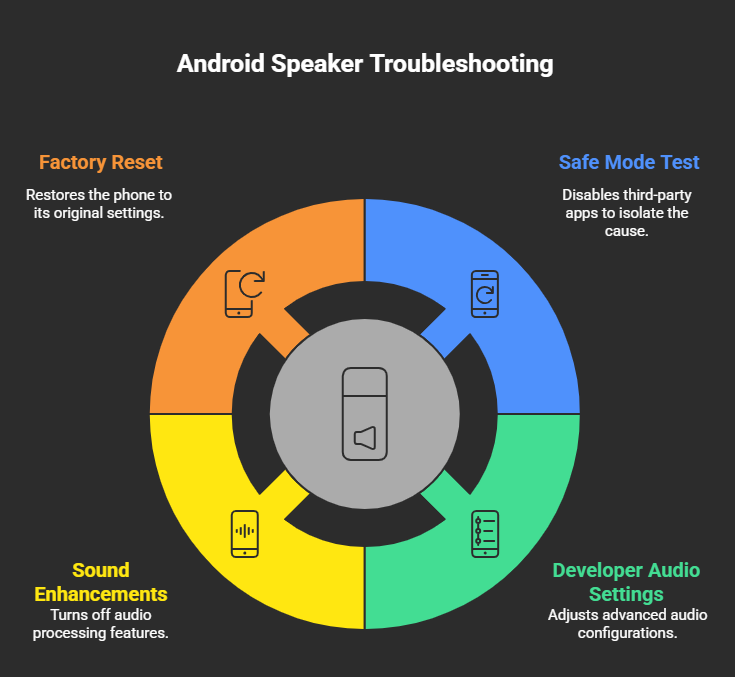
If your android speaker not working, the cause is often app-related or hidden system settings. Android gives more control, which also means more things can go wrong. Android documentation also highlights that audio routing and third-party apps are common causes of speaker issues.
Start with these:
1. Test in Safe Mode
Safe Mode disables all third-party apps.
- Restart into Safe Mode
- Test your speaker
If sound works, an app is causing the issue. Remove recently installed apps one by one.
2. Check Developer Audio Settings
Some audio problems come from hidden system controls.
- Enable Developer Options
- Look for Disable Absolute Volume
- Toggle it and test audio
This helps fix bluetooth audio issues and routing conflicts.
3. Disable Sound Enhancements (Samsung & Others)
On devices like Samsung:
- Go to Settings → Sound → Effects
- Turn off Dolby Atmos or custom profiles
Misconfigured enhancements can cause phone speaker crackling or low output.
4. Factory Reset (Last Option)
If nothing works:
- Back up your data
- Perform a factory reset
This fixes deep software audio bugs, but only use it as a final step.
✔ If the issue still remains, it’s no longer software hardware inspection is next.
Repair or Replace: What Actually Makes Sense?
If it turns out your speaker is physically damaged, you’ve got three real options: fix it, try doing it yourself, or just move on and replace the phone.
There’s no one-size answer here. It comes down to how old your phone is, how much the repair costs, and, honestly, whether it’s even worth the hassle.
What You’ll Pay for a Speaker Repair (Realistic Range)
Phone Model | Loudspeaker Repair | Earpiece Repair | Turnaround Time |
|---|---|---|---|
iPhone 15 / 15 Pro | $80 – $130 | $60 – $100 | 1–2 hours |
iPhone 13 / 14 | $60 – $100 | $50 – $80 | 1–2 hours |
iPhone 12 & older | $40 – $70 | $35 – $60 | ~1 hour |
Samsung S24 / S23 | $70 – $120 | $60 – $100 | 1–3 hours |
Samsung A Series | $40 – $80 | $35 – $70 | 1–2 hours |
Google Pixel 8 / 7 | $55 – $95 | $50 – $80 | 1–3 hours |
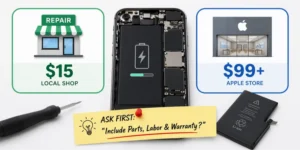
Prices aren’t fixed. They change depending on where you go. Official repair centers charge more, but you’re paying for original parts. Local shops are usually cheaper and for speaker repairs, they’re often just as good.
Should You Try Fixing It Yourself?
If you’re using an older phone, DIY can actually make sense. Parts are cheap, sometimes under $20, and there are solid guides online. But it’s not as “easy” as some videos make it look. You need the right tools and a bit of patience.
- If your mobile speaker not working on an older device, DIY is worth considering.
- If it’s a newer flagship, don’t risk it. One mistake can turn a small repair into a bigger problem.
When It’s Smarter to Replace the Phone
Sometimes repair just doesn’t make sense.
- Repair cost is close to half the phone’s value
- The phone is already 3–4 years old
- Battery or performance is already declining
At that point, putting money into it is more of a temporary fix than a solution.
✔ Simple way to think about it:
- Small cost → fix it
- High risk → get it repaired professionally
- High cost → replace it
Tools & Resources That Are Actually Worth Using
If your phone speaker not working, the right tools can save you time and sometimes money. These are the ones that actually help, not random app-store guesses.
Repair & DIY Guides
- iFixit
Step-by-step repair guides written by real technicians. You’ll also find parts and difficulty ratings before opening your phone.
If you’re even thinking about DIY, start here.
Speaker Cleaning & Water Eject Apps
- Speaker Cleaner / Sonic-type apps
These use sound frequencies to push out water or fine dust.
Helpful if your phone speaker muffled after moisture, not a fix for real damage, but worth trying.
Basic Cleaning Tool
- Compressed air (short bursts only)
Cheap and effective for clearing dust from the speaker grille.
Keep distance and avoid continuous spray, misuse can damage the speaker.
Professional Repair Services
- uBreakiFix / Asurion (or similar local shops)
Reliable option if you want a proper fix with warranty.
Best choice when mobile speaker not working due to hardware issues.
Diagnostic Apps (Android)
- PhoneCheck or similar apps
Test individual components, including speaker output.
Helps confirm whether it’s a software audio bug or actual damage.
iPhone Diagnostics
- Apple in-store diagnostics
Apple can run a quick hardware test without opening your device.
Useful if your iPhone speaker not working and you want a clear answer before repair.
✔ These tools won’t fix every issue, but they’ll help you avoid guessing.
If you’re unsure, a quick visit to a repair technician can give you a clear answer — and most diagnostics don’t cost anything.
Frequently Asked Questions
Why does my phone speaker work on calls but not for music or videos?
This usually isn’t a hardware problem. Your phone uses different outputs for calls and media. If your phone audio not working in apps, check Bluetooth first, it might be connected elsewhere. Also, make sure media volume is actually turned up (it’s separate from ringtone on both Android and iPhone).
Can rice fix a water-damaged phone speaker?
No, and it often makes things worse. Rice doesn’t properly remove internal moisture and can leave dust behind. If your phone speaker muffled after water, let it dry naturally or use airflow. If distortion stays, you’re likely dealing with early hardware damage.
Why is my phone speaker crackling at high volume?
A little distortion at max volume is normal. But if your phone speaker crackling starts at lower levels, it’s usually dust buildup or a worn-out speaker. Clean it first, if it doesn’t improve, replacement is the only real fix.
Why did my iPhone speaker stop working after an update?
It happens. Some iOS updates temporarily affect audio. If your iPhone speaker not working after an update, check forums or wait for a patch. If the issue continues, a settings reset usually fixes software-related glitches.
How do I know if I need a loudspeaker or earpiece repair?
They’re different parts.
- Calls = earpiece
- Music/videos = loudspeaker
Test both separately. If only one fails, you don’t need a full repair, just that specific component.
Is speaker repair covered under warranty or insurance?
Sometimes. If there’s no physical or water damage, warranty may cover it. Otherwise, insurance plans (like AppleCare+ or carrier protection) usually reduce repair costs. Always check this before paying out of pocket.
Can I still use my phone if the speaker is broken?
Yes. You can use Bluetooth devices or wired headphones as a temporary solution. But if your mobile speaker not working, it’s still worth fixing, especially if you rely on calls or alerts daily.
Why does my speaker sound muffled after water exposure?
Water blocks the speaker grille and reduces sound. Use a vibration-based cleaner app or let the phone dry fully. If the phone sound not working properly even after drying, residue may have damaged the speaker internally.
How long does a phone speaker repair take?
Most repairs take 30–90 minutes for common models. Some newer phones take longer due to tight internal design. Many repair shops offer same-day service if parts are available.
Can loud volume damage a phone speaker over time?
Yes. Regular use at high volume wears out the speaker membrane faster. If your sound quality drops over time, this is usually why.
Is it safe to clean a phone speaker with compressed air?
Yes, if used correctly. Use short bursts from a slight distance. Never spray continuously or too close, or you risk damaging internal components.
Why does my speaker work only while charging?
That’s not normal. It usually points to a battery or power issue, not the speaker itself. If this happens, get the device checked, it’s not something software fixes can solve.
If your phone sound not working even after trying these fixes, it’s worth getting a quick diagnostic from a technician. Most repair shops can identify the issue in minutes, and it could save you from replacing a perfectly fixable device.
What You Should Do Next
If your phone speaker not working, don’t overcomplicate it. Most of the time, the fix is simply a setting, a restart, or a quick clean. That’s why it makes sense to start with the basics before thinking about repair.
If nothing changes after that, then look at the pattern.
- Sound issues after water or dust → likely blockage or moisture
- Sudden failure after a drop → possible hardware damage
- Sound working in some cases but not others → usually software
Once you know the cause, the next step becomes obvious.
- If it’s a small issue, fix it yourself.
- If it’s unclear, get it checked.
- If repair costs don’t make sense for your phone’s age, replacing it might be the smarter move.
One thing that saves people money: always compare repair quotes. Prices vary more than you’d expect, even for the same job. And if your phone is already a few years old, don’t just look at the speaker, consider battery life and overall performance too. Sometimes fixing one issue doesn’t solve the bigger picture.
✔ The goal isn’t just to fix the speaker, it’s to make the right decision overall. Fixing the issue early is almost always cheaper than waiting until the speaker fully fails.